
Gmail is at the heart of modern email communication. It provides users with many Gmail features to help manage daily email floods. With more emails arriving each day, effectively using your Gmail account and Gmail settings can make life easier. These 12 best Gmail hacks include drafting emails in Google Docs, using Gmail Stars, and leveraging smart compose features. They help save time and boost Gmail productivity.
Draft Emails in Google Docs Using Your Gmail Account
In early 2022, Google introduced a new feature. It allows users to write emails in a Google Doc and then send them to Gmail. This boosts productivity by mixing Google Docs’ great features with the ease of emailing.
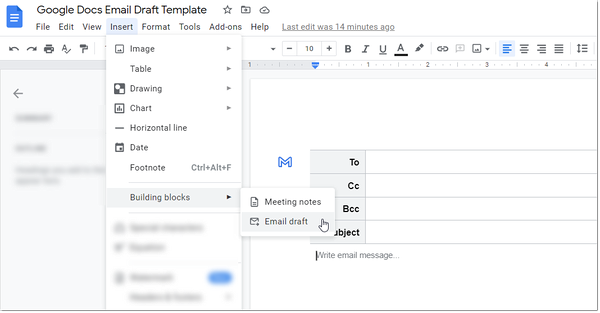
How to Draft Emails in Google Docs
Start a new Google Doc and press “@” to select email templates or “Email draft.” Once completed, send it to your Gmail inbox. This first Gmail hack improves workflow by integrating writing, collaboration, and email communication in one place.
Benefits of Drafting Emails in Google Docs
Drafting emails in Google Docs ensures content is saved automatically and allows teams to share drafts. Features like voice typing and formatting tools make specific messages professional and consistent. Using Google Docs helps create email threads that are easier to manage.
Collaborative Email Drafting
Google Docs is famous for letting people work together. This includes sharing email drafts so teams can edit and give feedback together. By doing this, companies make sure their emails are right, professional, and clear.
Create and Use Gmail Labels and Email Aliases
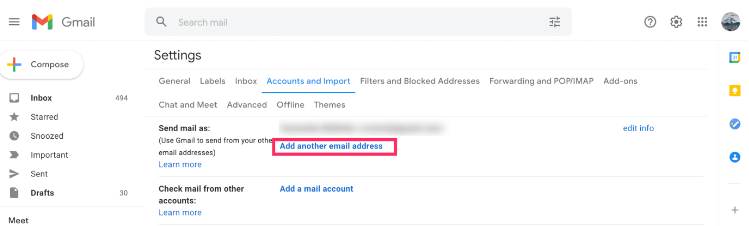
Gmail labels and aliases help manage multiple Gmail inboxes. You can separate personal, work, or subscription emails, which prevents your primary inbox from overflowing.
Setting Up Email Aliases
It’s easy to set up Gmail aliases. Just add a plus sign and a keyword to your Gmail address (e.g., [email protected]). Or you can insert periods (e.g., [email protected]). This allows you to create labels and manage multiple inboxes efficiently.
Organize Your Inbox with Aliases
By using aliases with Gmail filters, incoming emails can automatically go to sub-labels. This keeps your inbox organized and ensures important messages aren’t buried under unwanted emails.
Besides aliases, Gmail has more tools like Canned Responses and Google Tasks. These help manage your emails and increase productivity. Using these, you can cut down the average 13 hours a week spent on emails.
Get Aggressive with Filters to Reduce Unwanted Emails
Gmail filters are essential to keeping your inbox type tidy. Filters can automatically sort emails, label emails, or archive messages, making email delivery smoother.
Creating Filters in Gmail
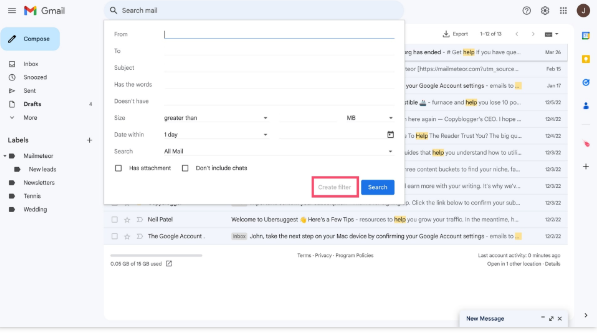
To start, look at your inbox to see what emails you get a lot. You can make filters from an email or using the search box. Filters can be based on who sent the email, the subject, keywords, or if there’s an attachment.
Then you decide if those emails should be labeled, archived, sent somewhere else, or deleted. This helps keep your inbox neat and tidy.
Using Filters for Priority Inbox
Filters can also enhance your multiple inboxes setup, prioritizing incoming messages from clients or team members while letting less critical emails go to the spam folder.
Automating Email Sorting with Filters
Using filters means you don’t have to sort emails by hand every day. Always check and update your filters to meet your needs. This approach keeps your inbox from getting too full. But be careful—make sure you don’t miss anything crucial.
Always check how a new filter works. If you share an inbox, get everyone’s thoughts on the filters. This ensures they help manage emails correctly for everyone.
Turn Off Email Notifications for Multiple Inboxes
Disabling notifications for Gmail messages reduces distractions and improves focus. Checking your inbox only a few times a day can save hours and increase Gmail productivity hacks.
Managing notifications is key for focus. Constant alerts break concentration, and it’s tough to get back on track. It can take about 30 minutes to refocus after a distraction. By checking emails only three times a day, stress drops, and productivity rises.
Most email services start with notifications on. This includes alerts for primary messages. Yet, users can choose to turn them off on both desktops and mobile devices. For iPhone or iPad users, settings can change to only show high-priority alerts. This change helps you stay focused without interruptions.
Controlling notifications helps manage email better. Gmail users can mark emails as important. This tells Gmail which messages to show first. Turning on the auto-advance feature helps move through emails faster after you archive or delete them.
Using Gmail Keyboard Shortcuts for Faster Email Navigation
Learning keyboard shortcuts helps respond immediately and move through email threads faster. Gmail keyboard shortcuts can speed up composing, replying, and archiving emails.
By customizing these shortcuts, you make Gmail fit your style. It becomes even faster for you.
Common Keyboard Shortcuts in Gmail
Gmail has over 30 shortcuts to make things faster. You can compose with “c” and reply with “r”. Deleting emails is easy with “#” and searching with “/”. Using them can save you 15 minutes a day.
Customizing Keyboard Shortcuts
Enable custom shortcuts in Gmail settings under the advanced tab. This handy tool enhances email efficiency and productivity features.
Create and Manage Email Templates and Canned Responses
Replying quickly is key to staying productive and on time. Gmail’s template feature helps a lot with this. It lets users save emails they write a lot. This cuts down on the time it takes to answer usual emails. You can keep your answers consistent and professional this way.
Setting up templates in Gmail is easy. First, turn on the template feature in your settings. Then, create a template by writing an email and saving it. This makes sending frequent messages quick and simple. Using templates is great for businesses that need to keep their messages uniform.
Updating templates in Gmail is also simple. Just write a new email and save it over the old one. This keeps your emails up-to-date and fitting. Gmail lets you have many templates for different situations. This makes handling various communication needs simpler.
Email templates help teams respond in a unified way. For firms using Yesware, templates can be shared. This keeps all emails in line with company standards. Common templates are for newsletters, ads, and welcoming notes. Keeping these templates helps make your email tasks smoother and better quality.
Enable and Use the Snooze Feature to Organize Inbox Type
The Gmail offline Snooze feature helps prioritize messages. Offline mail and internet connection aren’t required until the email returns. It keeps your inbox organized and ensures no important message is missed.
How to Snooze Emails
To snooze an email, first pick the email you want to delay. Then, click the clock icon at the top of the inbox. Next, pick when you want the email to come back, like later today, tomorrow, or a specific future date. The email will disappear and then return unread at the time you chose. This keeps your inbox organized.
Benefits of the Snooze Feature
Snoozing emails helps people with lots of messages each day. It makes managing your inbox easier by hiding less urgent emails. They come back when you’re ready. This way, your inbox stays tidy. Also, snoozed emails are easy to find in the Snoozed folder, so you won’t be late answering them.
Customize Your Gmail Theme
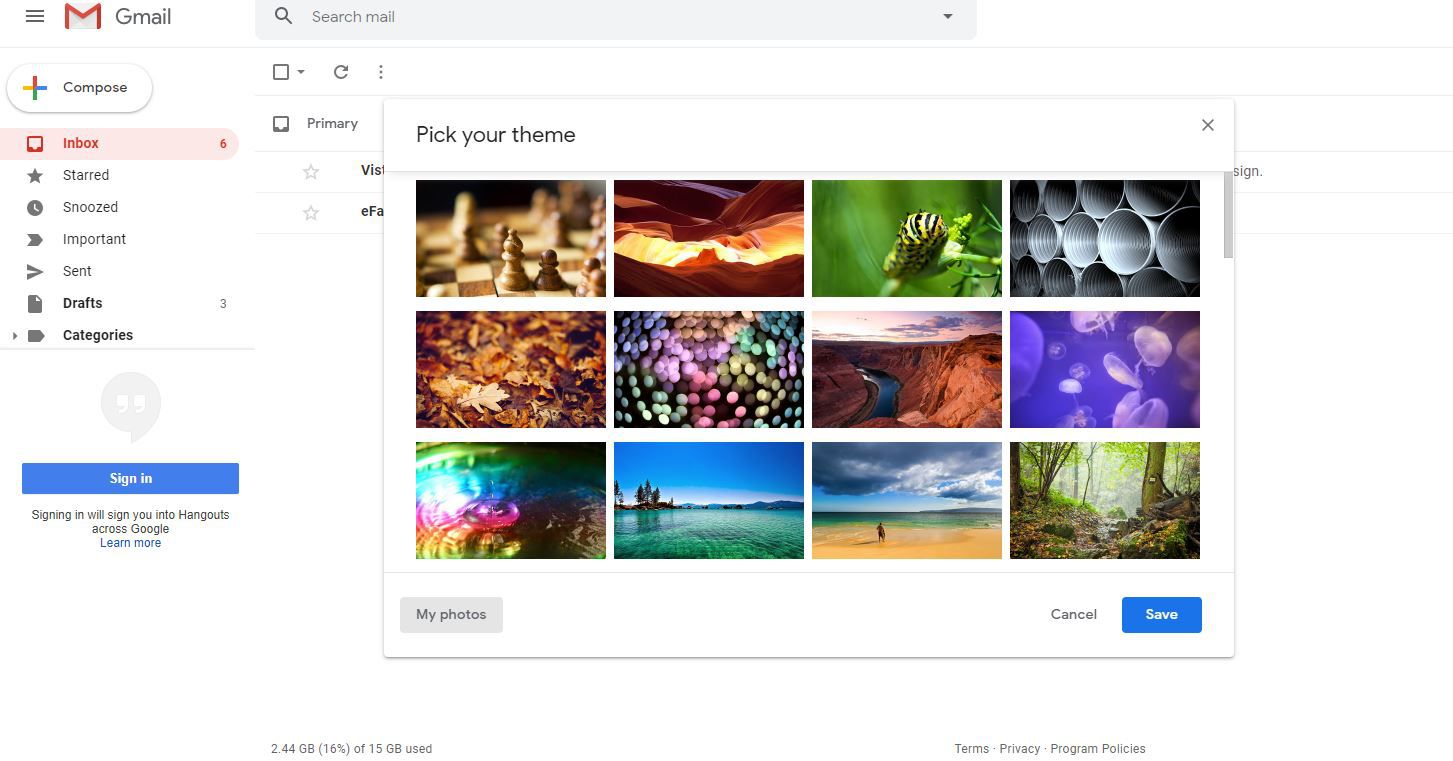
Change your Gmail look to make it yours. This makes your email fit your style. It also makes looking at your inbox fun.
Use dark modes, bright colors, or a photo you love. This turns long email hours into better moments.
Themes help more than just looks. They keep your eyes happy. This makes your email space comfy. Gmail has many themes for everyone.
It’s easy to change your Gmail theme. Just a few clicks! For steps on customizing Gmail, check this guide. Make your Gmail feel special.
Want to work smarter? Look at Gmail productivity tips. They boost your email game. Make the most of your Gmail.
Reduce Email Clutter by Unsubscribing and Create Rules
Eliminating email clutter requires unsubscribing from things you don’t need. You can do this yourself or use filters to help. This makes managing emails easier. It also makes sure you see the emails that matter most.
How to Unsubscribe from Emails
Start with unsubscribing from spam to clean your inbox. Gmail makes it easy to find the “Unsubscribe” link at an email’s bottom. You can also use tools like Unroll.me or Cleanfox. They help you unsubscribe from many things at once. This makes your inbox neater and helps you work better.
Set Up Filters to Automatically Unsubscribe
Set filters for words like “unsubscribe” to archive or delete emails. This improves email efficiency and reduces distractions, helping you achieve inbox zero faster.
Advanced Use of Gmail Stars to Boost Email Efficiency
Gmail has a cool way to keep emails organized using stars and symbols. You can choose from different star types and colors. This helps tell emails apart by importance or subject.
Setting Up Multiple Stars
You can add various stars in Gmail to sort your emails better. Just go into Gmail’s settings to turn on more stars. This gives you more ways to mark your emails, making important ones stand out.
Searching Emails with Stars
With more stars set up, finding emails is easier. Just use the search bar in Gmail. Type the star color or type you’re looking for. This helps you find important emails fast, keeping your inbox organized.
Additional Gmail productivity features
Use the send cancellation period to recall emails.
Enable undo send to fix mistakes after hitting send.
Review the import tab to manage contacts or settings.
Keep confidential emails safe with confidential mode.
Adjust maximum page size in Gmail settings for large email lists.
Access Gmail gear icon to select settings.
Check complete list of Gmail features in settings.
Organize your email system efficiently for better Gmail productivity.
Grant others grant access to manage emails when necessary.
Use schedule send to plan emails ahead of time, perfect for different time zones.
Convert your email guidance into a blog post for team training or documentation.
Conclusion
By applying these Gmail productivity hacks, users can efficiently handle emails waiting in their primary inbox, manage multiple inboxes, and make email drafts smoother. Using smart compose and email templates, combined with Gmail keyboard shortcuts, filters, and labels, saves time and reduces distractions.
Mastering Gmail with these tools turns your email platform into a handy tool for better productivity. Gmail features, offline mail, and Google Workspace integration ensure that email communication is faster, smoother, and more professional.
Frequently Asked Questions
How can I draft emails in Google Docs?
Use the “@” symbol in a Doc to start an email draft. Choose “Email draft” from the options. Click the Gmail icon to send it to Gmail. Drafting in Docs supports collaborative editing, making it easy for teams to review and refine emails before hitting send.
What are the benefits of drafting emails in Google Docs?
Drafting emails in Google Docs makes collaboration easy. It gathers all feedback in one place. This way, teams work better together and write emails faster. It also allows for planning subject lines and matching emails before sending.
How can Google Docs enhance collaborative email drafting?
Google Docs allows several people to work on an email simultaneously. Everyone can suggest edits or use predictive text features to speed up drafting. Once finalized, you can export directly to Gmail or apply confidential mode for sensitive content.
How do I set up email aliases in Gmail?
For email aliases, add dots or “+” to your email address. Use “[email protected]” for newsletters. For work, try “[email protected]”. These help organize your email account efficiently.
How can email aliases help organize my inbox?
Email aliases help sort your emails into categories. You can have personal, work, or subscription emails. This makes your inbox neat and easy to handle, especially when combined with parent labels.
How do I create filters in Gmail?
To make filters, click the dropdown menu in the search bar. Tell Gmail what to look for using search operators. Choose “Create filter” to decide what Gmail does with those emails.
How can I use filters for a priority inbox?
Make filters for important emails. Mark them as priority. They go to a special place in your inbox. This keeps your important emails easy to find.
How do filters automate email sorting in Gmail?
Filters sort emails for you by looking for certain details. They check the sender or keywords. This means less work for you and a tidy inbox.
How do I turn off email notifications in Gmail?
To stop email notifications, open Gmail settings. Click “See all settings,” then “General.” Choose “Turn off notifications.” This keeps you focused and minimizes distractions. You can also adjust time zones to ensure notifications match your schedule.
What are some common keyboard shortcuts in Gmail?
In Gmail, press ‘C’ to write a new email. ‘E’ archives an email. Use ‘Shift + U’ to mark as unread. ‘J’ and ‘K’ let you go through emails.
How can I customize keyboard shortcuts in Gmail?
Go to Gmail settings and click “Advanced”. Turn on custom shortcuts. A “Keyboard Shortcuts” tab will show up for you to change shortcuts as you like.
How do I create and manage message templates in Gmail?
For templates, open Gmail settings and click “See all settings”. Then go to “Advanced” and turn on “Templates”. Save an email as a template. It makes sending emails quicker. Save an email as a template. It makes sending emails quicker and easier for teams using machine learning or predictive text feature.
What is the Snooze feature in Gmail, and how do I enable it?
The Snooze feature hides an email until later. Hover over an email and click the clock icon. Pick when you want it back. This can help manage emails waiting in your general tab.
What are the benefits of using the Snooze feature in Gmail?
Snooze makes your inbox less crowded. It delays emails that aren’t urgent. This way, you don’t lose important emails in the clutter.
How can I customize my Gmail theme?
Change your Gmail look by going to settings and picking “Themes”. Choose from what’s there or upload your picture. It makes your email space nicer for you.
How do I unsubscribe from unwanted emails in Gmail?
To unsubscribe, find the link next to the sender’s address. Or, use filters to skip or remove emails from those senders.
How can I set up filters to automatically unsubscribe from emails in Gmail?
Create filters for words like “unsubscribe”. Gmail can archive or delete these emails. Your inbox stays clear of unwanted emails.
How do I set up multiple stars in Gmail?
In Gmail settings, find “Stars”. Drag the stars you want to the right box. Use these stars to tag emails by importance.
How can I search for emails using stars in Gmail?
To find starred emails, type “has:yellow-star” or “has:red-star”. This helps you quickly find emails you’ve marked.
More Posts
Unveiling the 8 Top Digital Personal Planners for CEOs
In today’s digital age, CEOs need top-tier tools, like the boss digital personal planners, to manage their tasks, projects, and teams efficiently. Especially when juggling crucial areas like client outreach ideas, marketing outreach...
8 Examples of Procrastination at Work
Many workers put off tasks and decisions, leading to stress, negative consequences, and even losing their jobs. Famous people like Mozart, Frank Lloyd Wright, and Steve Jobs also put things off. Yet, this...
10 Productivity Tips for Real Estate Agents
Real estate agents in the real estate industry must be highly productive, focusing on important activities, and applying practical real estate productivity tips to stay competitive. They should not just handle more listings...
11 Ways to Cultivate a Time Management Mindset
Managing time is like mastering an art. It's about using your time wisely to get big results. With 1,440 minutes each day, every moment counts towards your success. To be organized helps you...